How to move category description below the product list
This article describes how to move category description below the product list.
To implement the necessary changes, you will need to modify X-Cart templates as described below; you will also need to install and configure the module "Banner System".
Step-by-step guide
-
Modification of X-Cart templates
1.1. Create a new template; for example:
skins/theme_tweaker/default/en/center/bottom/category_description.tpl
Here is the content of the new template:
{**
 * @ListChild (list="center.bottom", weight="300")
 *}
{if:getTarget()=#category#}
<div class="category-description"{getDescription():h}</div
{end:}
The new template will be used to display category description in the center bottom part of the page within the "center.bottom" list.
1.2. Run the following SQL query on your X-Cart database:
INSERT INTO xc_theme_tweaker_template (template, date) VALUES ("theme_tweaker/default/en/center/bottom/category_description.tpl", UNIX_TIMESTAMP());After doing so you will be able to edit the new template directly in the Admin area of your X-Cart store, on the "Look & Feel" page in the "Webmaster mode" section, or while using the "Webmaster mode" tool.
1.3. Re-generate X-Cart cache.
1.4. Modify the code of the template skins/default/en/category_description.tpl using the "Webmaster mode" tool:
Comment out the code responsible for the output of category description by placing it inside the special tags
{* *}; for example:{*
<div class="category-description"{getDescription():h}</div
*}This will remove category description from the center top part of the page.
-
Set up a banner for the category.
2.1. Install and activate the module "Banner System".
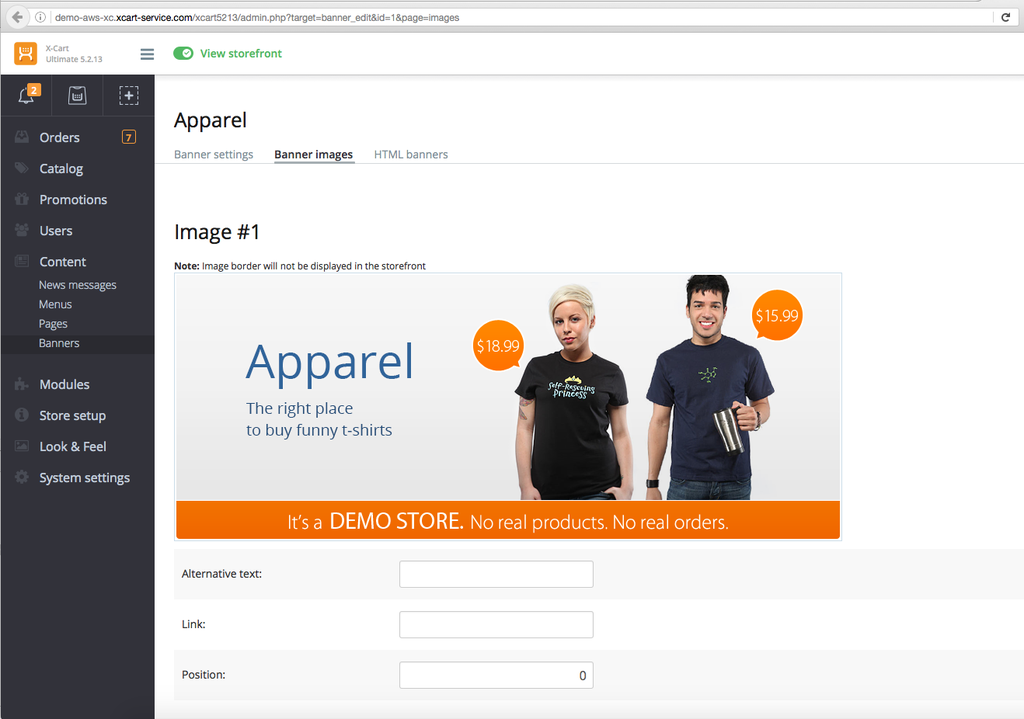
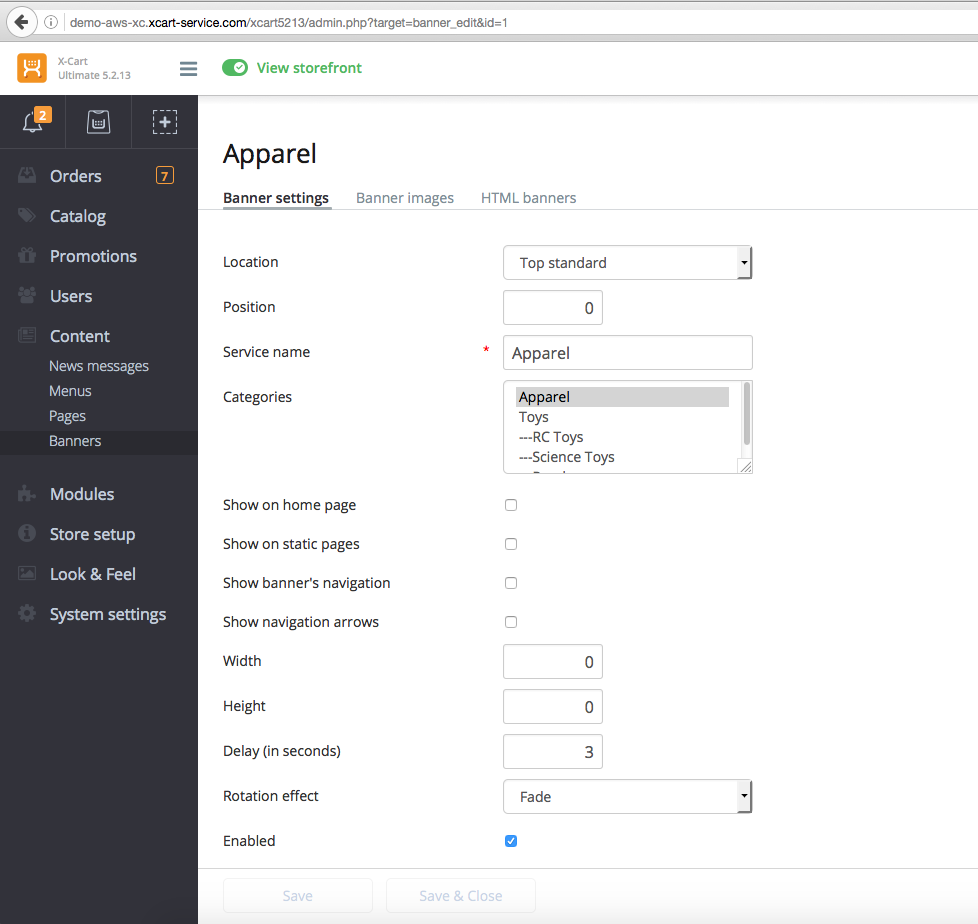
2.2. Remove the image from the category description, and use the same image to set up a banner that will be displayed in the center top part of the category page.
On the screenshots below you can find an example of how to set up such a banner for a category:
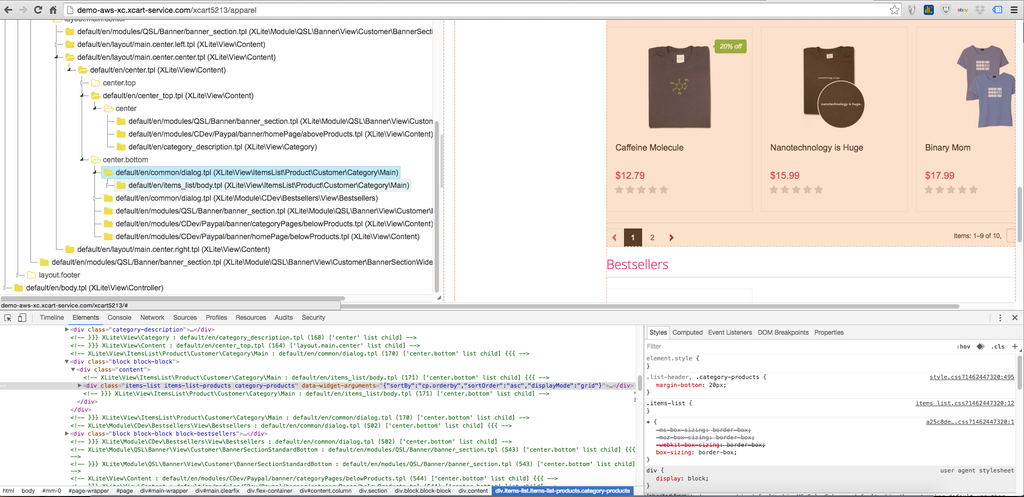
Please note that the new template is included into the "center.bottom" list with the weighting factor weight="300". This way, the new template will be displayed after the widget "Category products" (XLite\View\ItemsList\Product\Customer\Category\Main : default/en/items_list/body.tpl, for which the weighting factor is specified as weight="200"), and before the widget "Bestseller products" (XLite\Module\CDev\Bestsellers\View\Bestsellers : default/en/items_list/body.tpl, for which the weighting factor is specified as weight="400"):
classes/XLite/View/ItemsList/Product/Customer/Category/Main.php
* @ListChild (list="center.bottom", zone="customer", weight="200")
classes/XLite/Module/CDev/Bestsellers/View/Bestsellers.php
* @ListChild (list="center.bottom", zone="customer", weight="400")
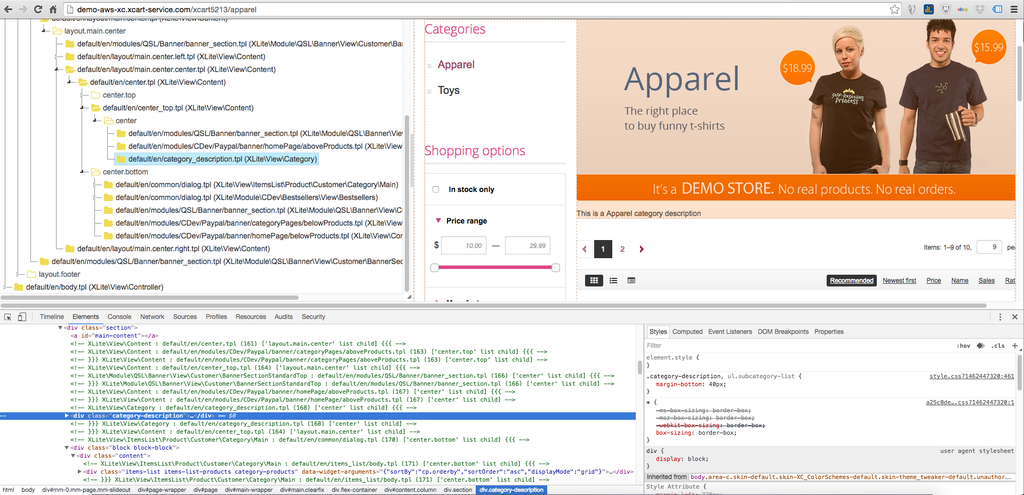
On the screenshots below, it is shown how to use the "Webmaster mode" tool to determine what widgets and templates are used to display data on a category page: